

This guide hosts Hermes in an Upstash Box and connects Hermes Desktop on your machine to it over SSH. The agent runs in the box; you chat with it from the desktop app.
1. Create a Box#
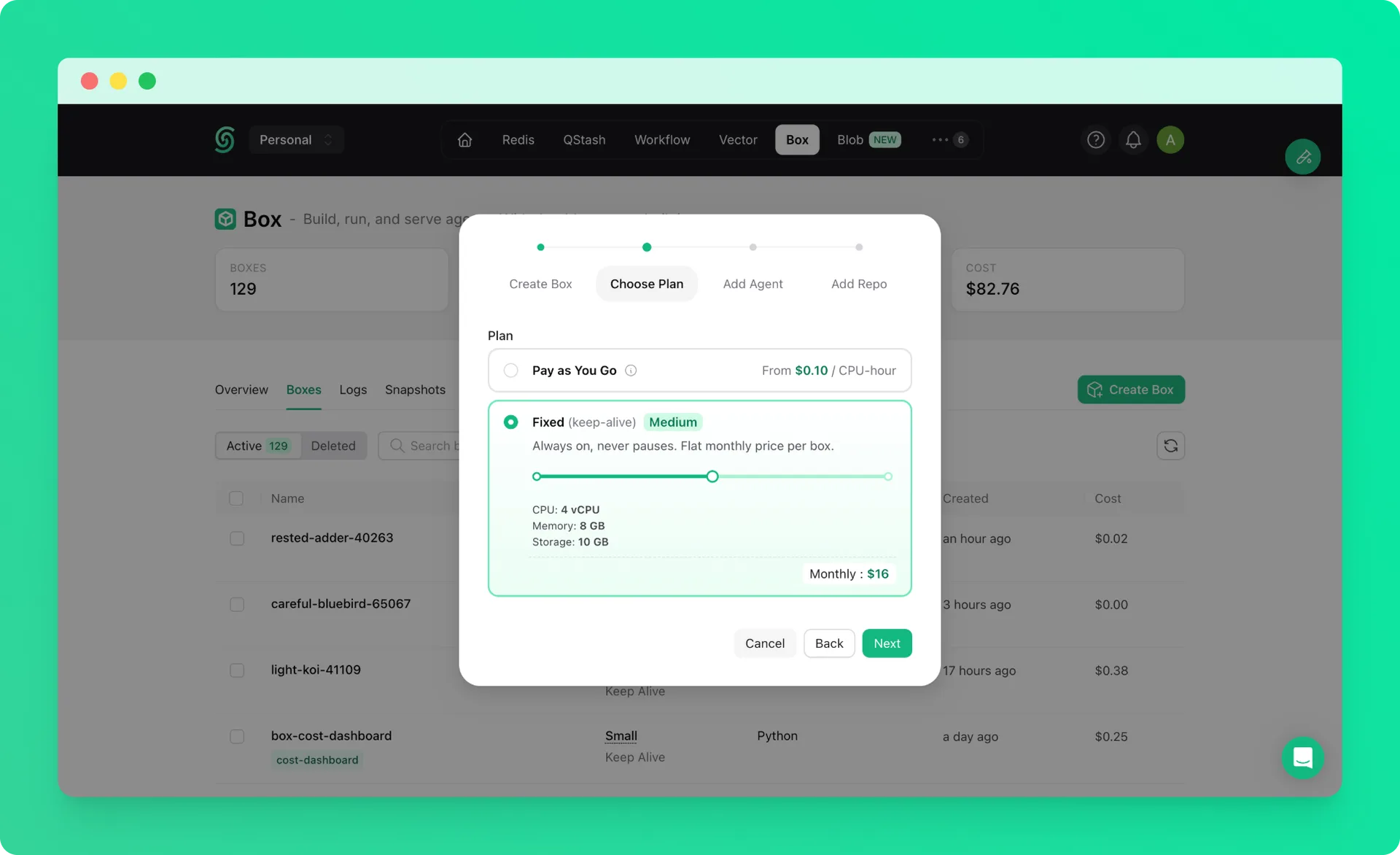
Create a box with the Fixed (keep-alive) plan and the Medium size. See the quickstart if you haven’t created one before.
Hermes is resource-intensive, so we recommend starting with a Medium box to ensure a smooth installation.
2. Connect via SSH#
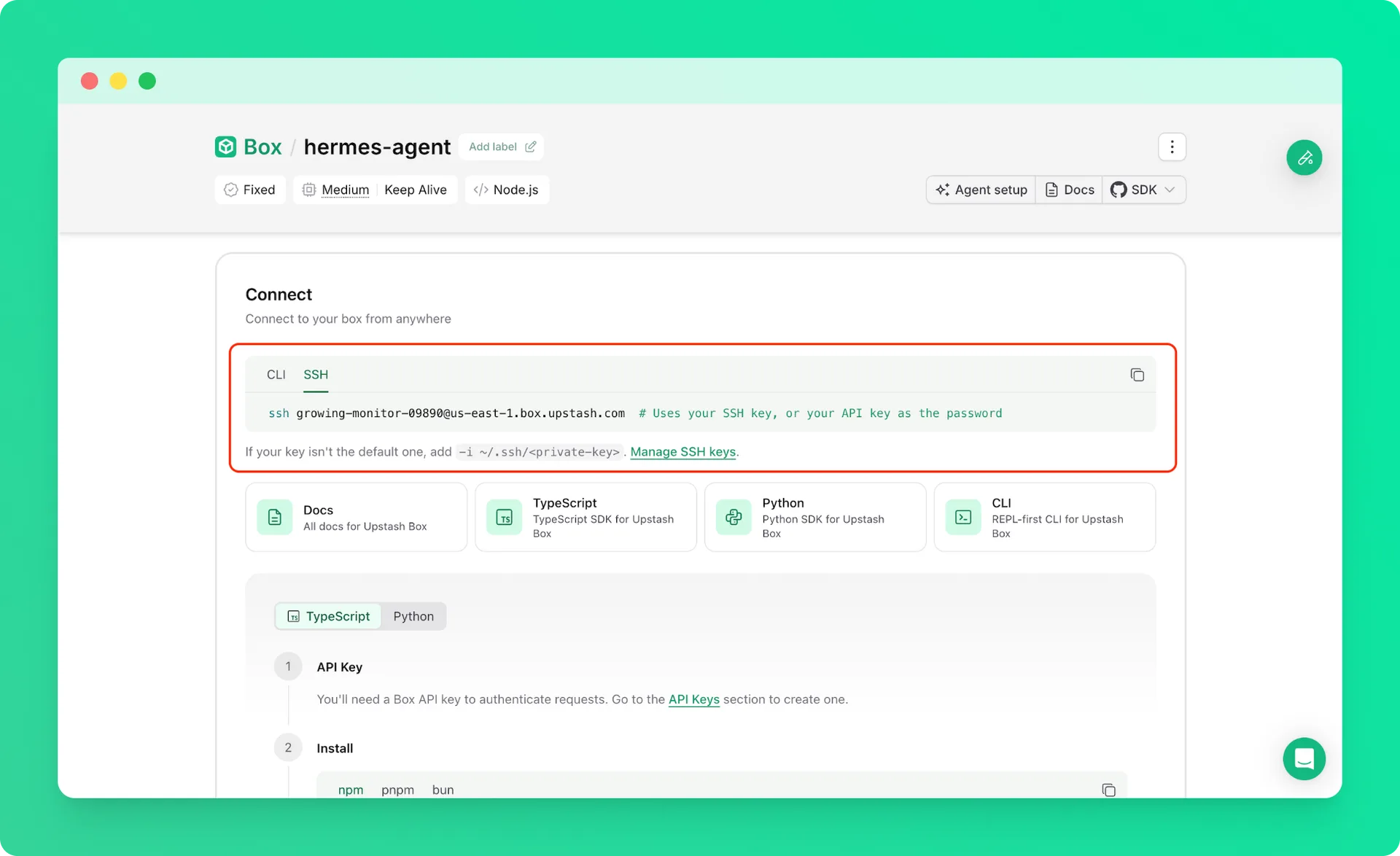
Once the box is running, set up an SSH key and connect to the box from your terminal. You’ll use the same key to connect from Hermes Desktop later.
The box-id is the name of your box (e.g. right-flamingo-14486).
You can also copy the command from the SSH tab under Connect on the box’s page in the console.
3. Install Hermes#
Run the following command to download and install Hermes inside the box.
Follow the CLI prompts to complete the setup.
4. Connect from Hermes Desktop#
Hermes Desktop connects over SSH with the key from step 2 and starts Hermes in the box for you.
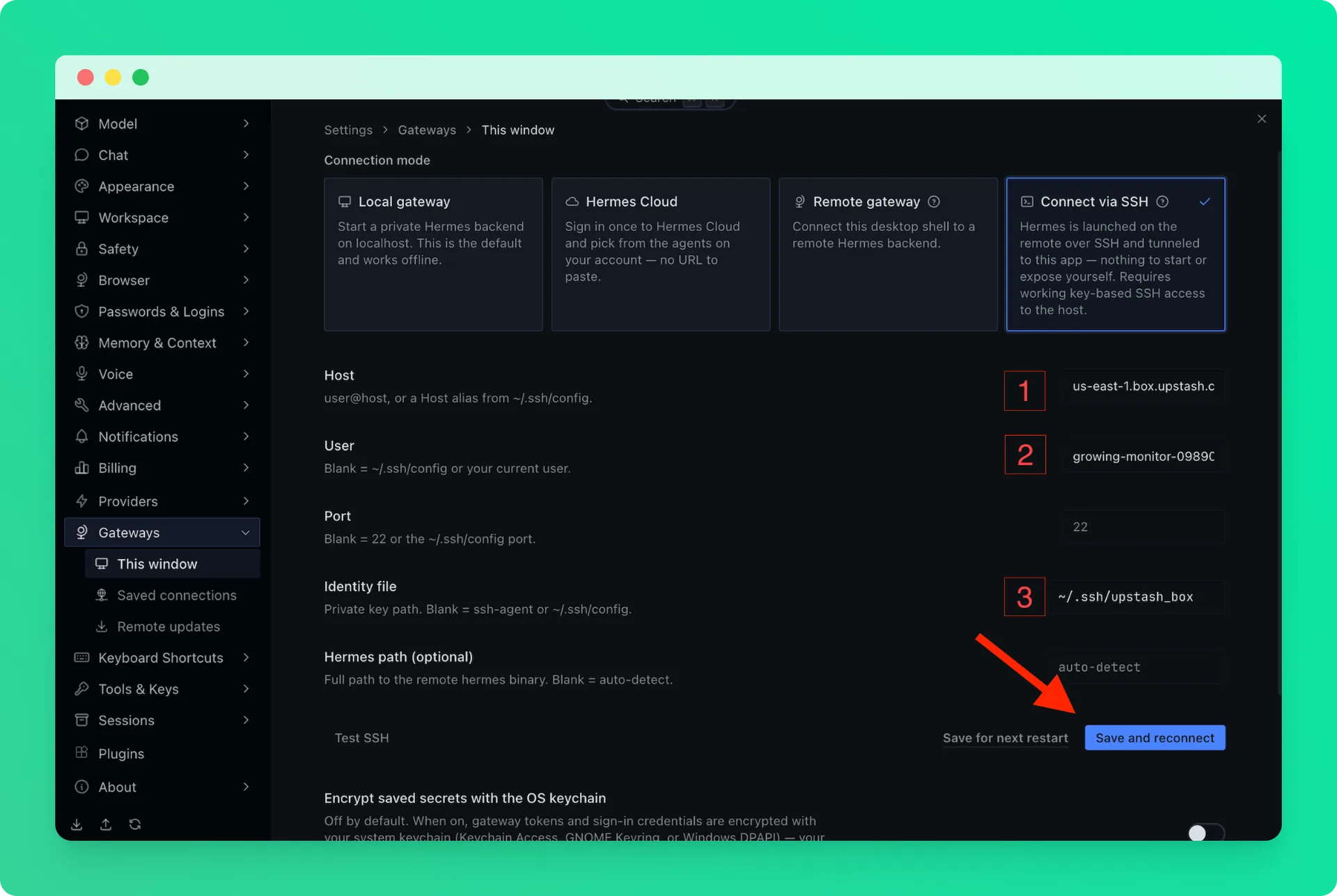
In Hermes Desktop, go to Settings → Gateways → This window and choose Connect via SSH. Fill in:
- Host:
us-east-1.box.upstash.com - User: your box ID
- Identity file:
~/.ssh/upstash_box
Leave Port and Hermes path blank, then click Save and reconnect.
To add the box under Saved connections instead, which has no identity file field, first add it to ~/.ssh/config:
Then use hermes-box as the host.
5. Start Chatting#
That’s it. Hermes Desktop now talks to the Hermes running in your box. The agent works in the box, not on your machine, and because the box is keep-alive, it’s there whenever you open the app.
See the Hermes docs for what to do next, such as adding skills or connecting messaging channels.